

LESSON 11 · Your workspace
The Revisions panel
Make changes easy to identify once a screenplay enters production, using revision sets and stable numbering.
1:23 · 1080p · Captions available · Playback starts only when you choose Play.
Start a revision set
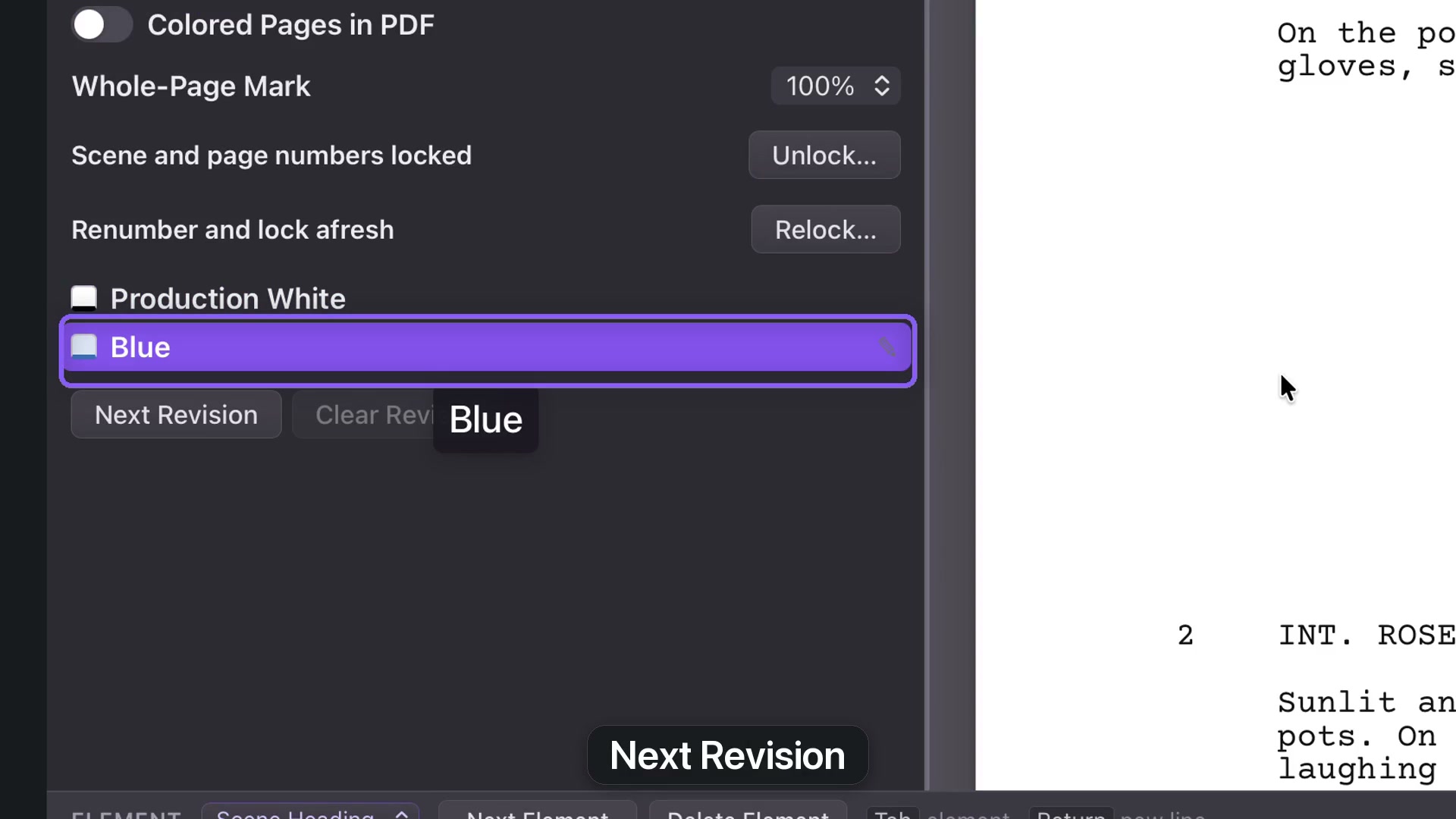
Open Production and enable Revision Mode. Scene and page numbers are locked for production, with Production White as the starting draft. Choose Next Revision to begin Blue. Further rounds use Pink, Yellow, Green and subsequent sets.
This is different from Review Mode, which tracks changes for acceptance or rejection. Production revisions identify what has changed in a distributed draft.
Choose marks and page color
Edits made in Revision Mode receive revision marks. Colored Pages tints revised pages in the workspace. Colored Pages in PDF controls whether those tints appear in the export; leave it off when the delivery should use white paper.
Whole-Page Mark sets how much change makes a page count as fully revised. Choose a threshold, or Never, according to the production’s requirements.
Configure and clear
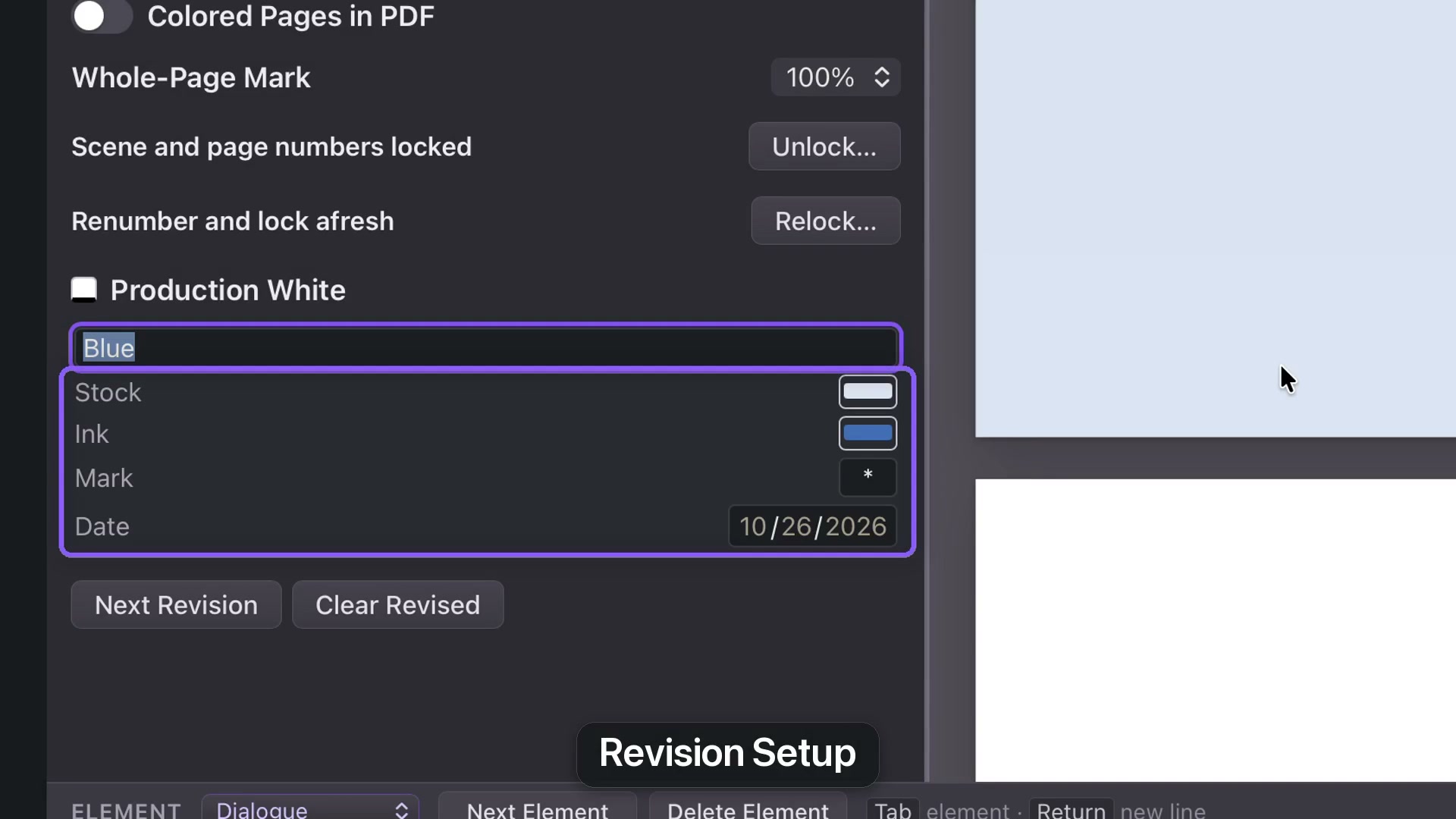
Choose Final Draft or numeric styles for inserted-page numbering. Revision Setup lets you adjust the active set’s color, mark and date.
Clear Revised removes revision marks from the current or selected elements. It does not undo the edited wording. Save a clearly named draft before preparing your production delivery.