

LESSON 10 · Your workspace
The Tagging panel
Mark the cast, props, wardrobe and other production needs, then export a breakdown your team can use.
1:18 · 1080p · Captions available · Playback starts only when you choose Play.
Tag a requirement
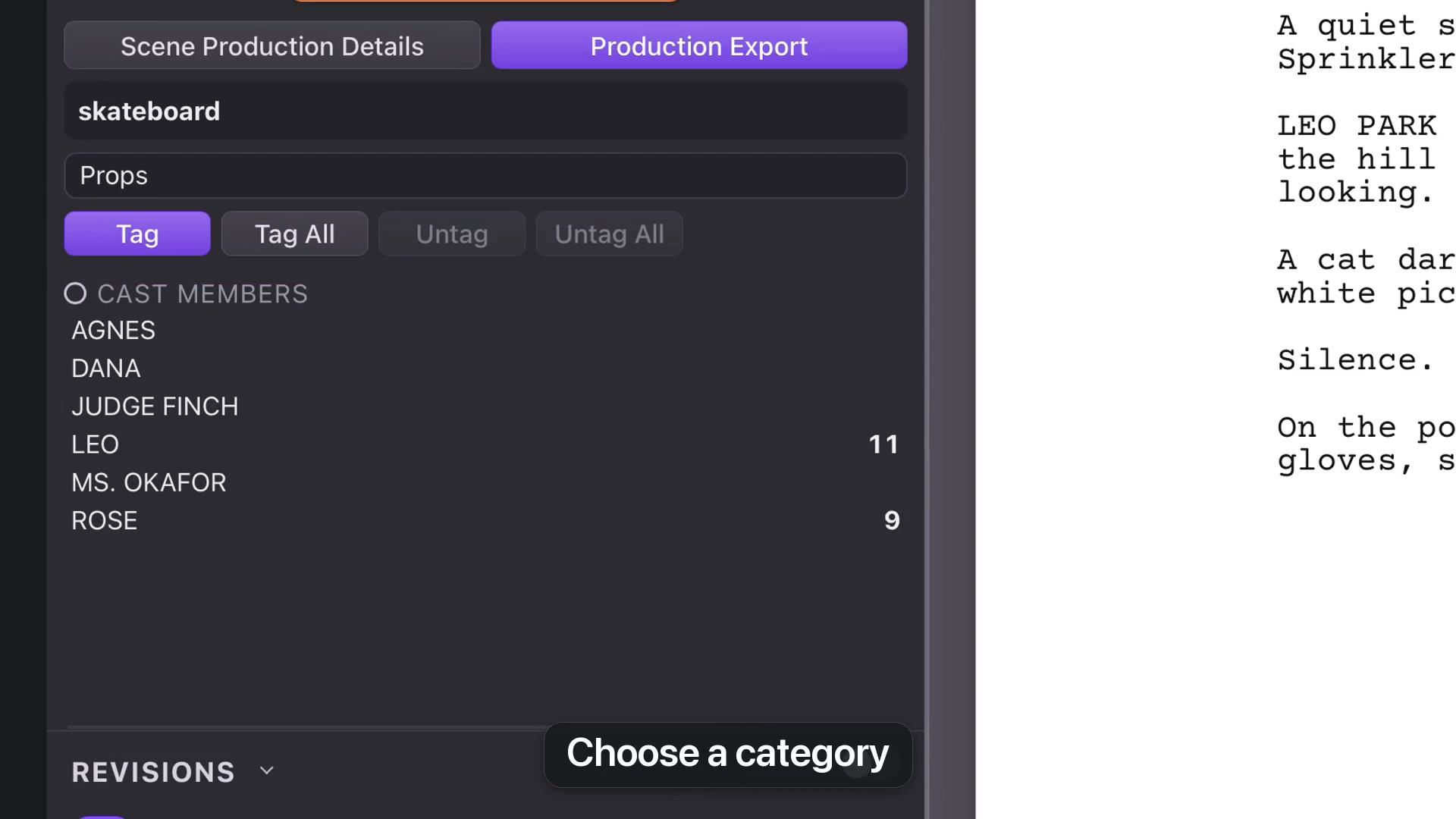
Open Production and enable Tagging Mode. Speaking characters are tagged as cast automatically. Select wording on the page, choose a category such as Props, Wardrobe or Vehicles, then click Tag.
Tag All applies the same tag to matching lines across the screenplay. Untag removes it from the current line; Untag All removes matching tags throughout the script. Check the scope before using an “All” command.
Review automatic suggestions
Auto-Tag examines Action lines for production requirements such as props, wardrobe and animals. Review its results against the actual text. An automated suggestion is a starting point for a breakdown, not a substitute for reading the scene.
Set scene production details
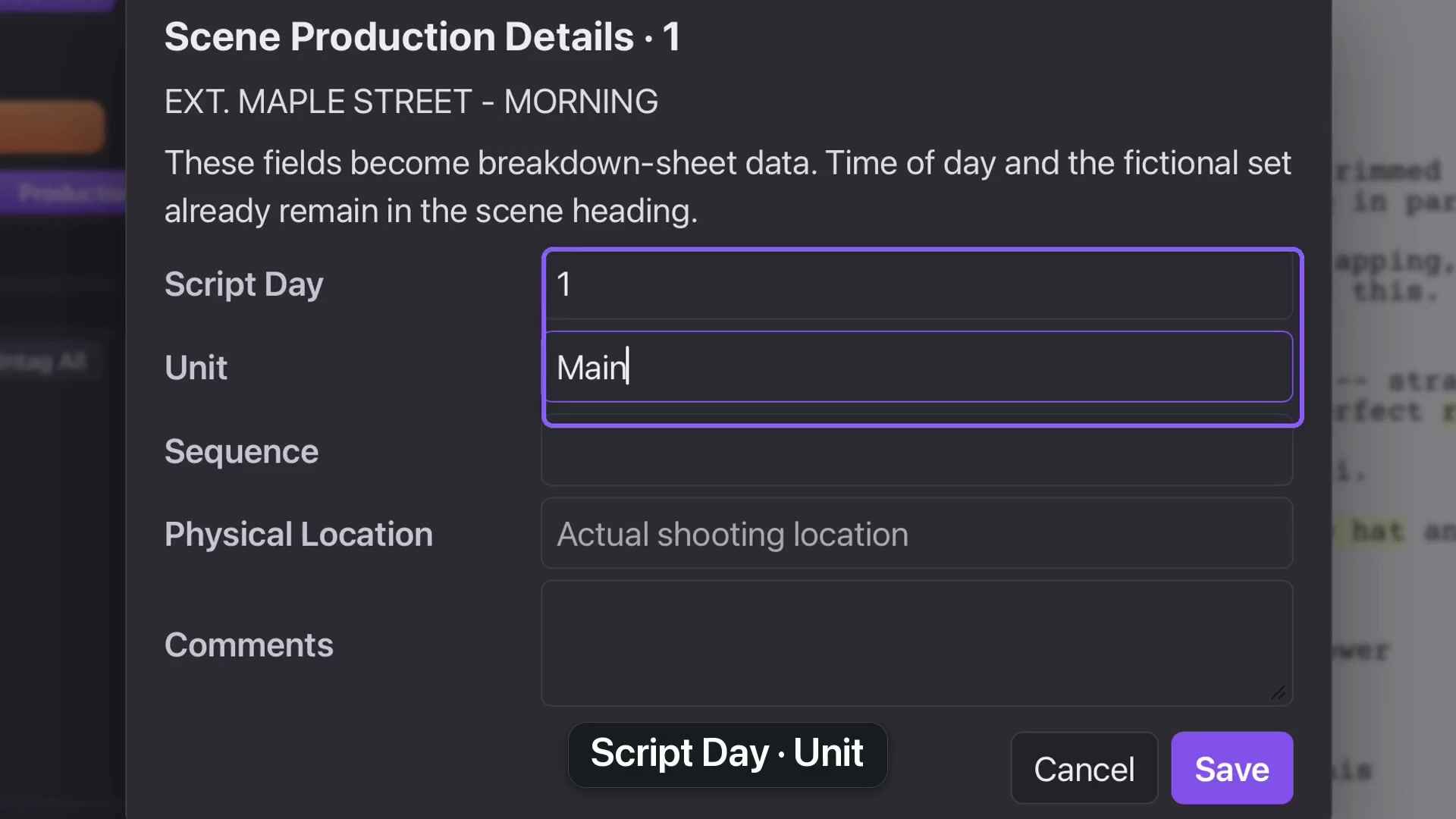
Open Scene Production Details for the current scene. Set its Script Day and Unit, save, and repeat where needed. These fields describe production information that should be consistent across related scenes.
Export the breakdown
Production Export prepares a Movie Magic Scheduling import and a CSV ledger. Choose the script range, review the preflight and choose an output folder. The grid control also exports the tagging breakdown as CSV for a spreadsheet.
Keep the editable project as your master; the report is the copy you give to the team.