

LESSON 01 · Getting started
Welcome to Attascript!
Make the workspace feel like home. Open a screenplay, choose its language, and find the panels you will use every day.
2:42 · 1080p · Captions available · Playback starts only when you choose Play.
Four ways to begin
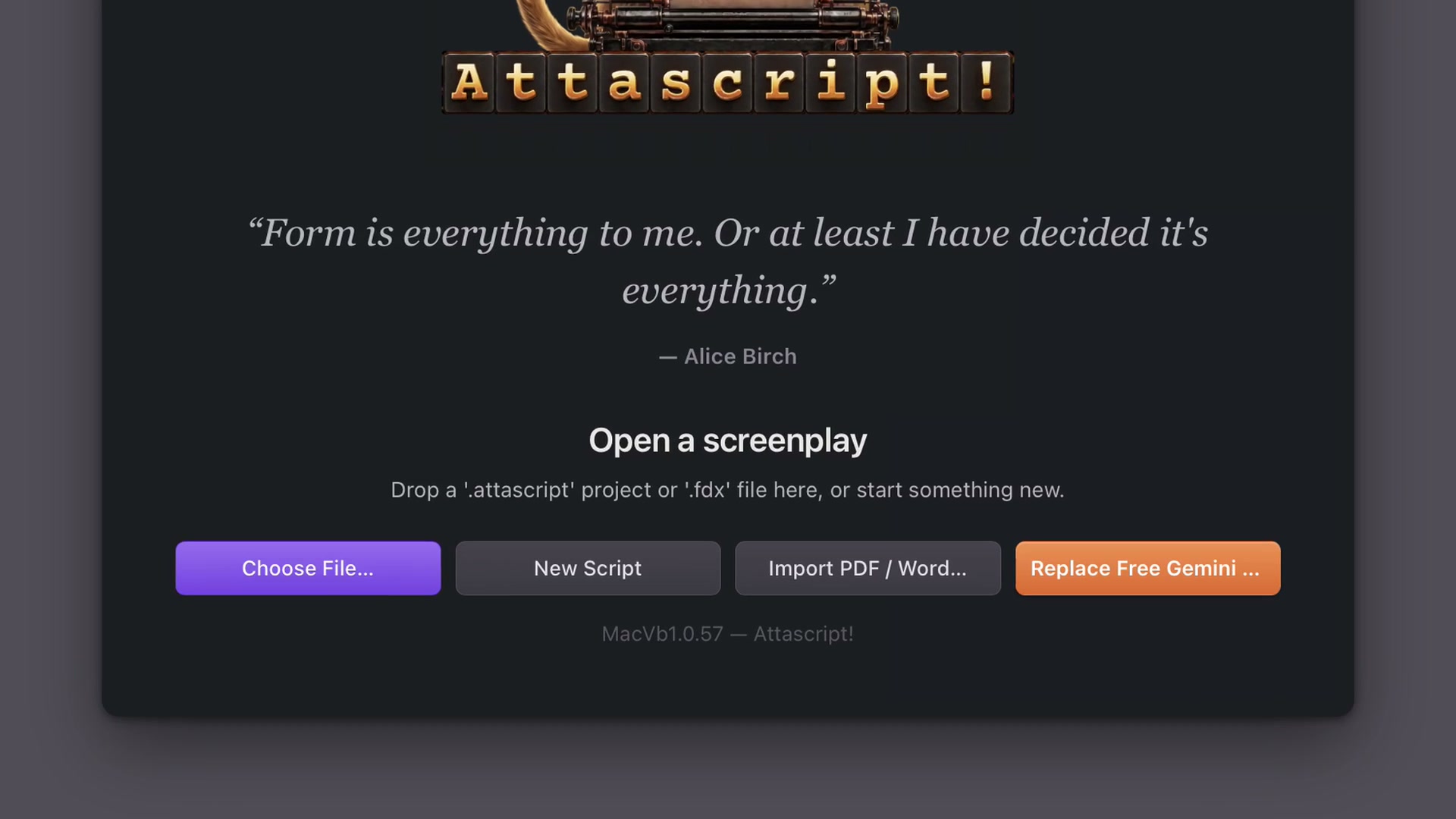
Choose File opens an existing project or Final Draft script. New Script starts a fresh screenplay. Import PDF / Word turns an existing document into editable screenplay elements. The Gemini key button connects the optional AI tools. You can also drop an Attascript or Final Draft file onto the welcome window.
The next chapter walks through the one-time setup of Free and Paid keys. If a key is already connected, the welcome button offers to replace it. You do not need to reconnect a key every time you write.
Choose the writing profile
Open Format, then Primary Language. Start typing the language name and choose the profile that fits your screenplay. Where regional styles are available, select the appropriate one. The profile controls conventions, page direction and the interface language; translating existing words is a separate action.
Arabic, Farsi and Hebrew use a right-to-left layout, with the sidebar on the right. The double-arrow control lets you place the sidebar on either side yourself. Hebrew and Arabic examples in this course retain scene numbers.
Start writing
Choose New Script. The pale sample page demonstrates a scene heading, action, character and dialogue. It is a guide, not text to select and delete: your first keystrokes replace the example.
The course uses The Tulip Deal for many demonstrations. You can follow the same steps with your own screenplay. Save an editable project early, then save regularly as you work.
Four tabs, two panels each
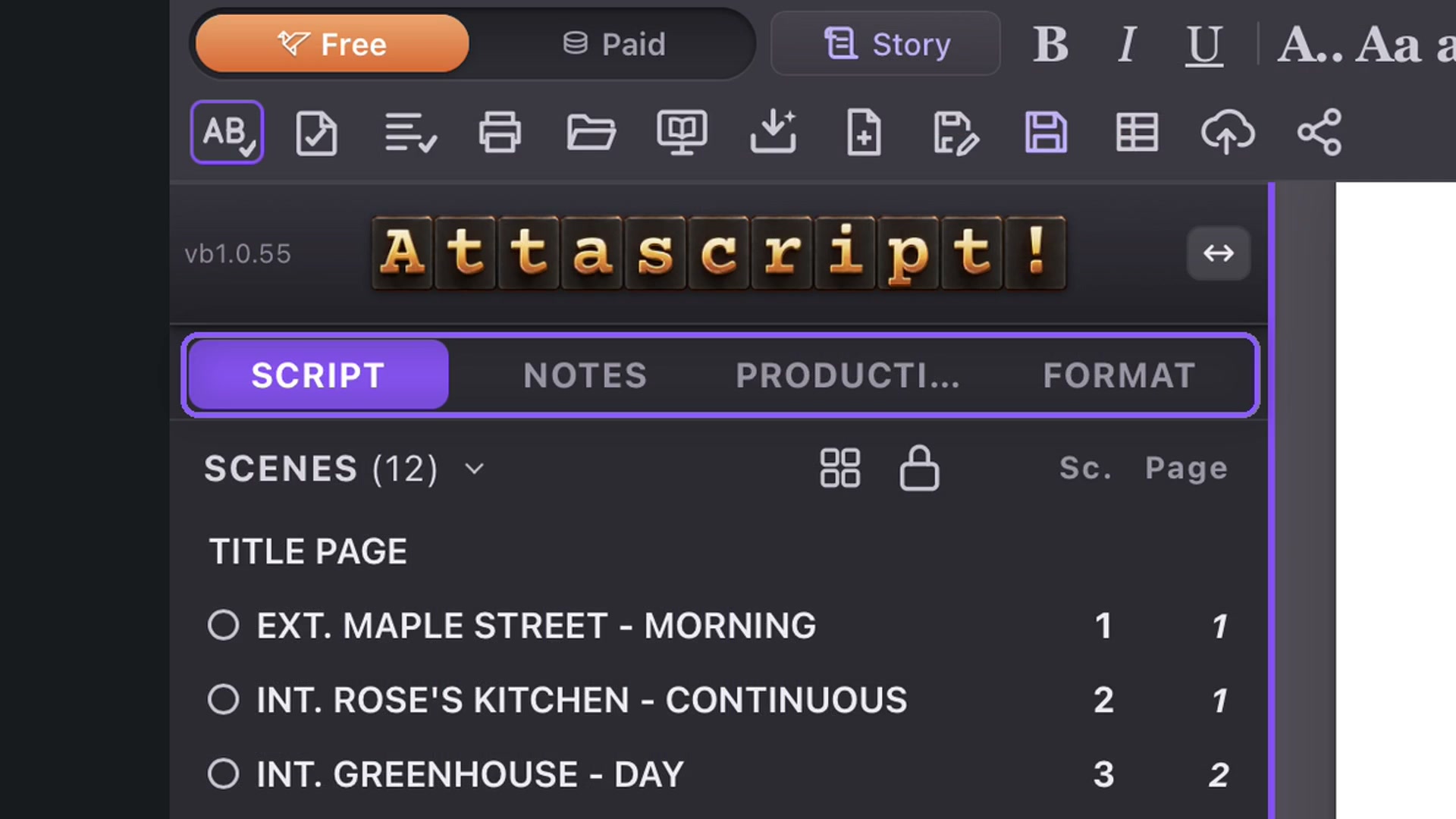
Script contains Scenes and Characters. Notes contains Ask the Monkey and your own notes. Production contains Tagging and Revisions. Format contains page controls and Style & Terminology.
Drag the sidebar edge to change its width. Fold a panel with the arrow beside its title, or drag the divider to give one panel more room than the other. The build number beside the logo is useful when reporting a problem.