

LESSON 02 · Getting started
Connect your Gemini keys
Connect Gemini in four simple steps: open, create, copy and paste. Finish Free mode first, then connect Paid mode if you want it.
2:07 · 1080p · Captions available · Playback starts only when you choose Play.
Free mode: open, create, copy, paste
- In Attascript, click the Gemini key button, then Get a key. Google AI Studio opens. On your first visit, sign in with your Google account and complete the setup Google presents.
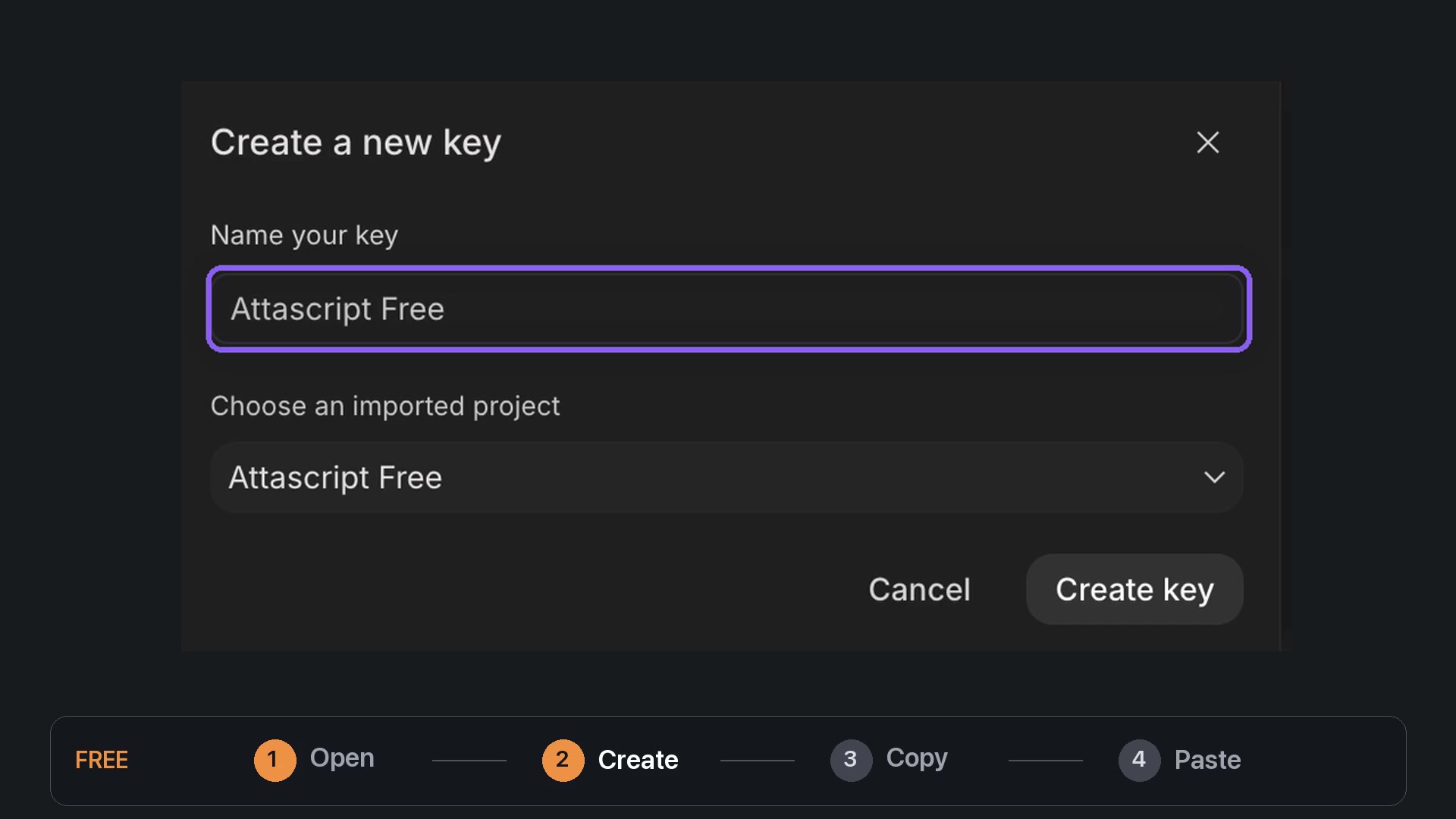
- Click Create API key. Name the key Attascript Free. Select your Free project, or create one called Attascript Free. Leave billing off for this project, then create the key.
- Open the new key and choose Copy key.
- Return to Attascript, paste into the key field and confirm. Your key is saved. Orange Free mode is ready.
Why Paid mode uses a separate project
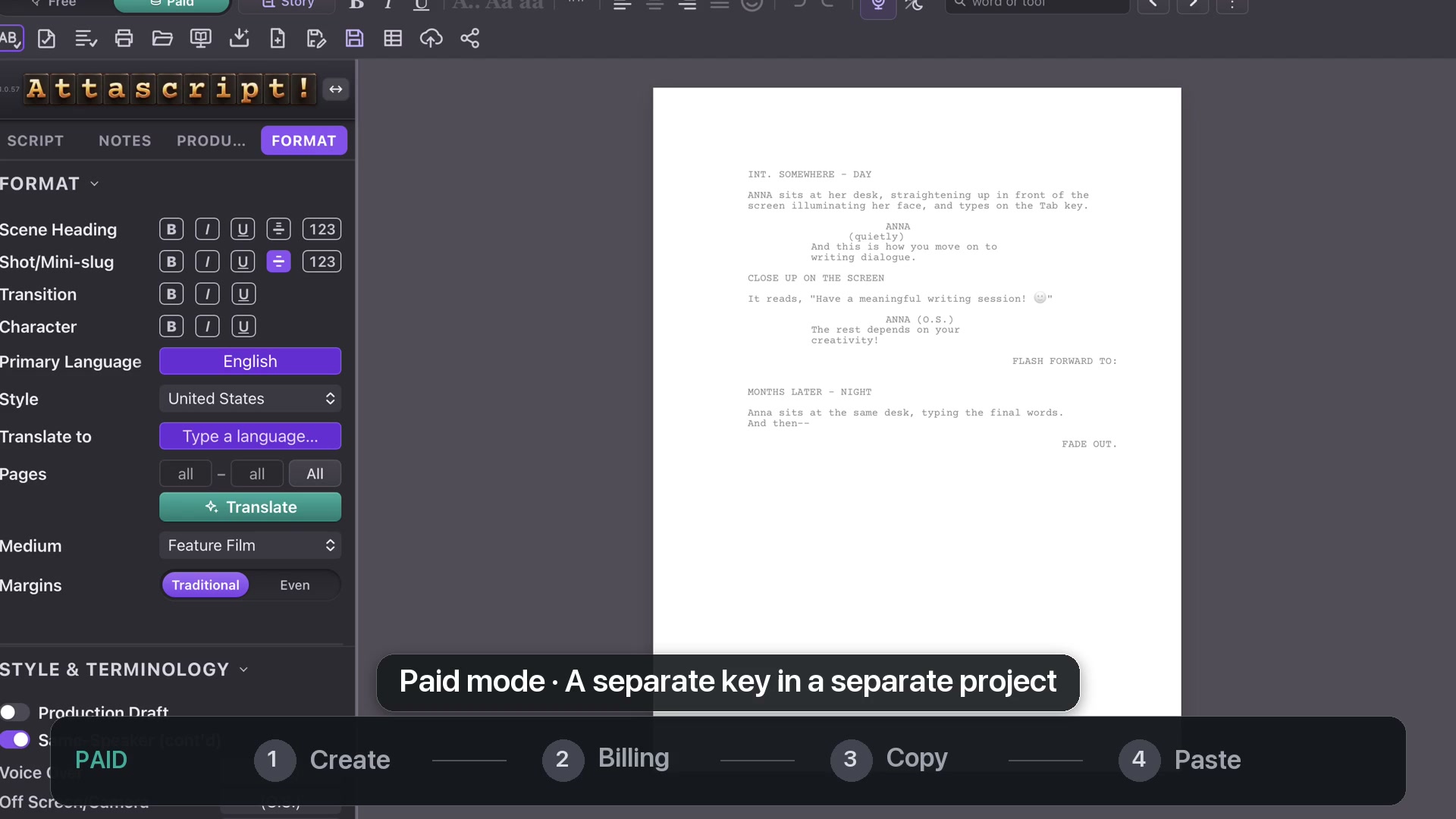
The teal Paid mode has its own key. Create it in a different Google project, because Google attaches billing to the project, not just to the name of a key. This keeps your unbilled Free project separate from the project used for paid requests.
Connecting a Paid key is optional. Google manages the billing account and the charges for its service. The tutorial shows where to begin billing setup; enter your payment details only in Google’s own interface when you choose to enable paid requests.
Paid mode: create, billing, copy, paste
- In AI Studio, create a key named Attascript Paid in a separate project also named Attascript Paid.
- On that project, use Set up billing and follow Google’s billing setup.
- Open the Paid key and click Copy key.
- Back in Attascript, select teal Paid mode, open Gemini API Key from the app menu, paste the Paid key and confirm.
Replace a key later
If you change Google accounts or replace a key, use the wide key button on the welcome screen or the key icon in Ask the Monkey. Choose the intended Free or Paid mode and replace that mode’s key.
Both keys remain saved for later sessions. Orange selects Free; teal selects Paid. Keep the key itself private when sharing screenshots or asking for support.