

LESSON 06 · Your workspace
The Scenes panel
Navigate, organize and review your screenplay scene by scene from the Script sidebar.
1:23 · 1080p · Captions available · Playback starts only when you choose Play.
Find a scene
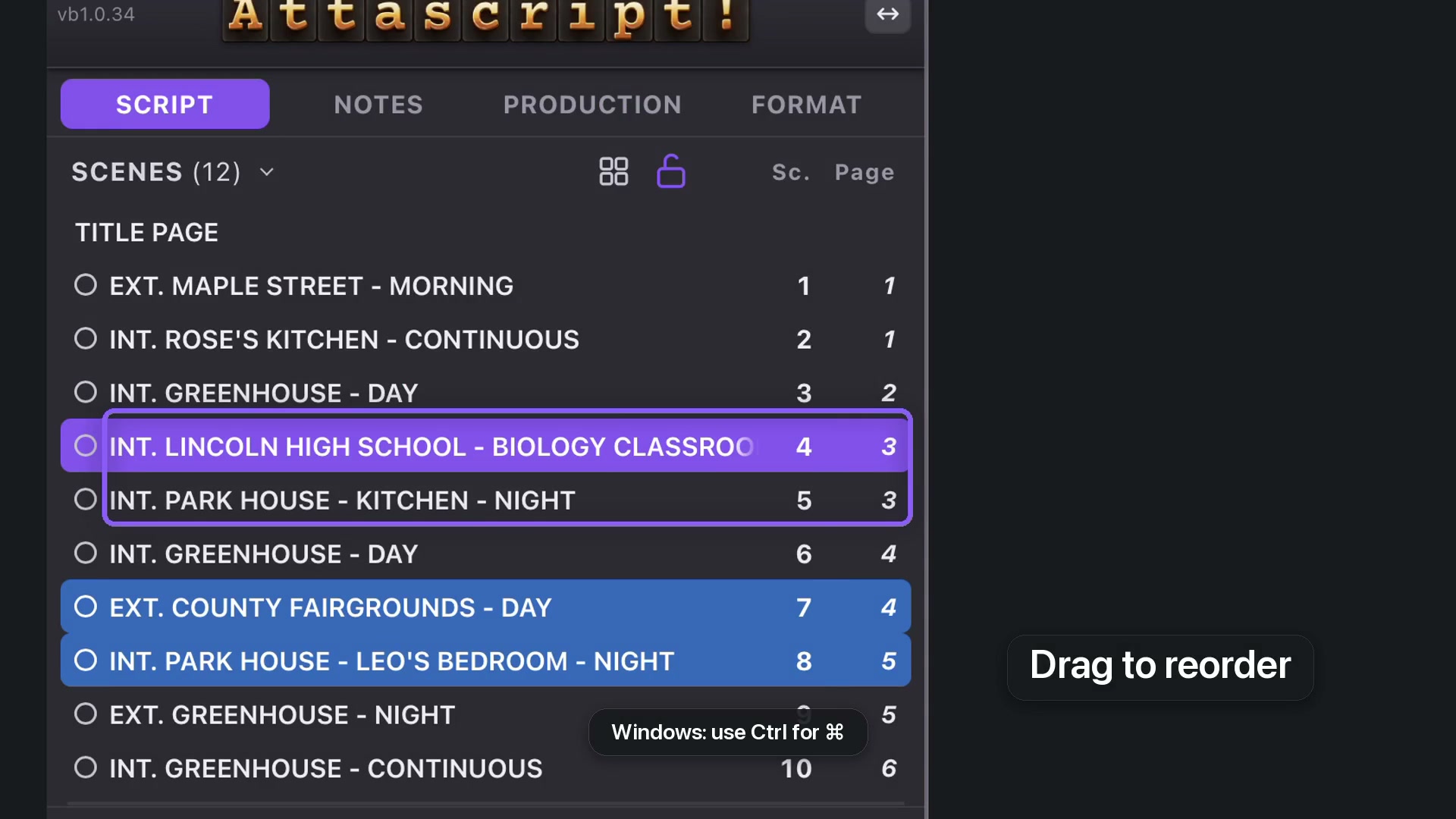
Open the Script tab. The Scenes panel lists headings with scene and page numbers. Click a row to jump to its pages. Title Page appears above the scenes.
A scene’s color ring opens swatches. Color a storyline, a location or the scenes you want to revise; use a consistent meaning for your own reminders.
Move scenes safely
Unlock scene order before dragging. Move a scene to its new position in the list; its screenplay content follows. Read the surrounding scenes to check the new transition, then lock the order again to avoid accidental movement.
Switch to cards
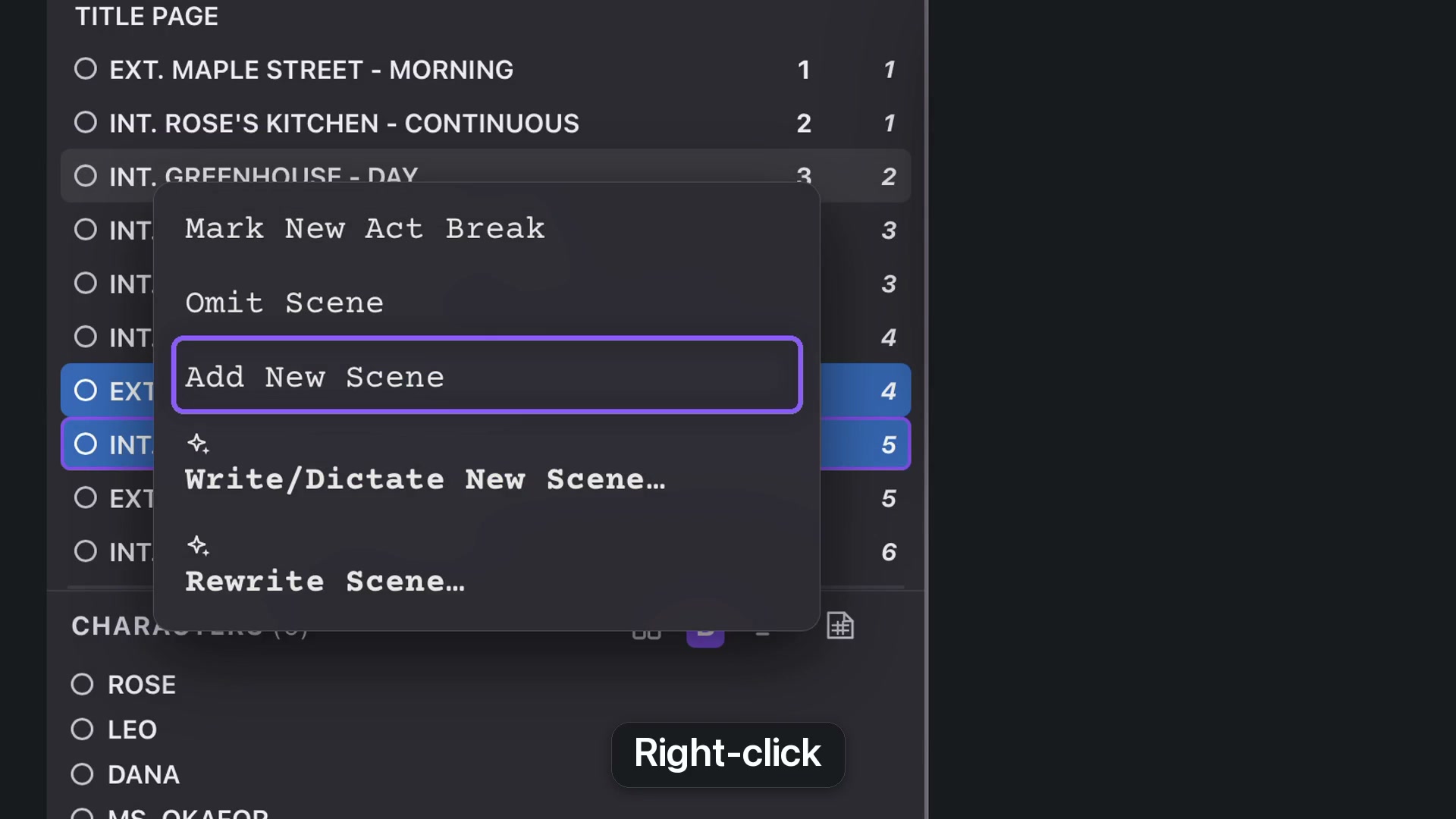
The four-squares control opens Scene Cards. The list is useful for navigation; the cards give descriptions and a wider view of the story. Drag the panel divider when you want more room for either Scenes or Characters.