

LESSON 20 · Develop your story
Outline
Read the story scene by scene and keep its descriptions consistent with Scene Cards.
2:00 · 1080p · Captions available · Playback starts only when you choose Play.
Build an outline
Open Story, then Outline. Each entry has a scene heading, description and location reference. Write All reads the scenes and fills their descriptions. Your screenplay remains intact.
Scan the sequence for progression: what does this scene change, and why does the next one follow?
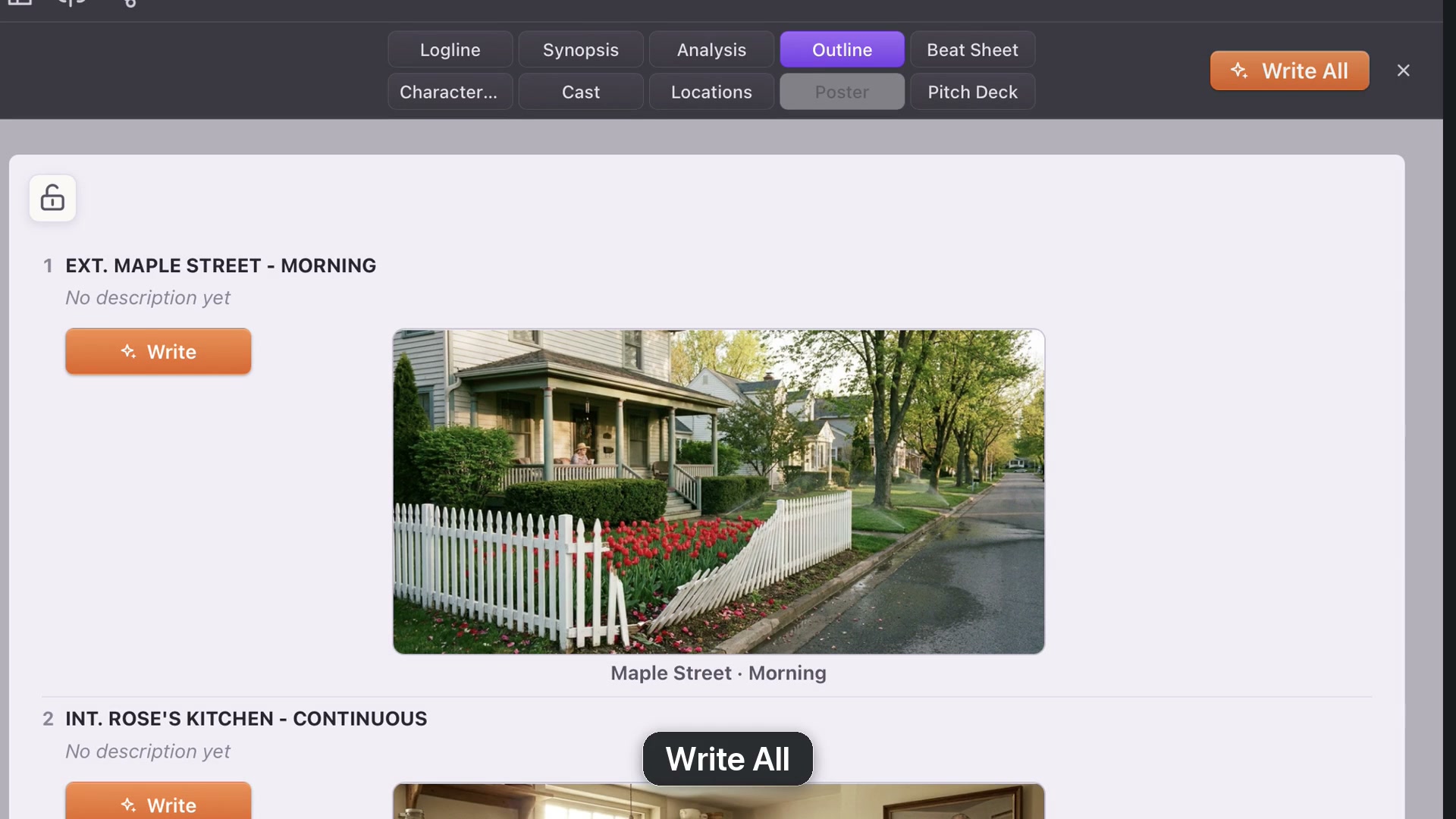
Revise one description
Use the entry’s Write or Rewrite button to focus on one scene. Ask for a shorter summary or a different emphasis. You can also edit the wording directly. In the example, the description emphasizes the trouble Leo creates and the unlikely partnership that follows.
Move between outline and screenplay
Click a scene heading to open its pages. Return through Story and Outline to continue reviewing. Open Scene Cards and the same description is already there; both views use the same material.
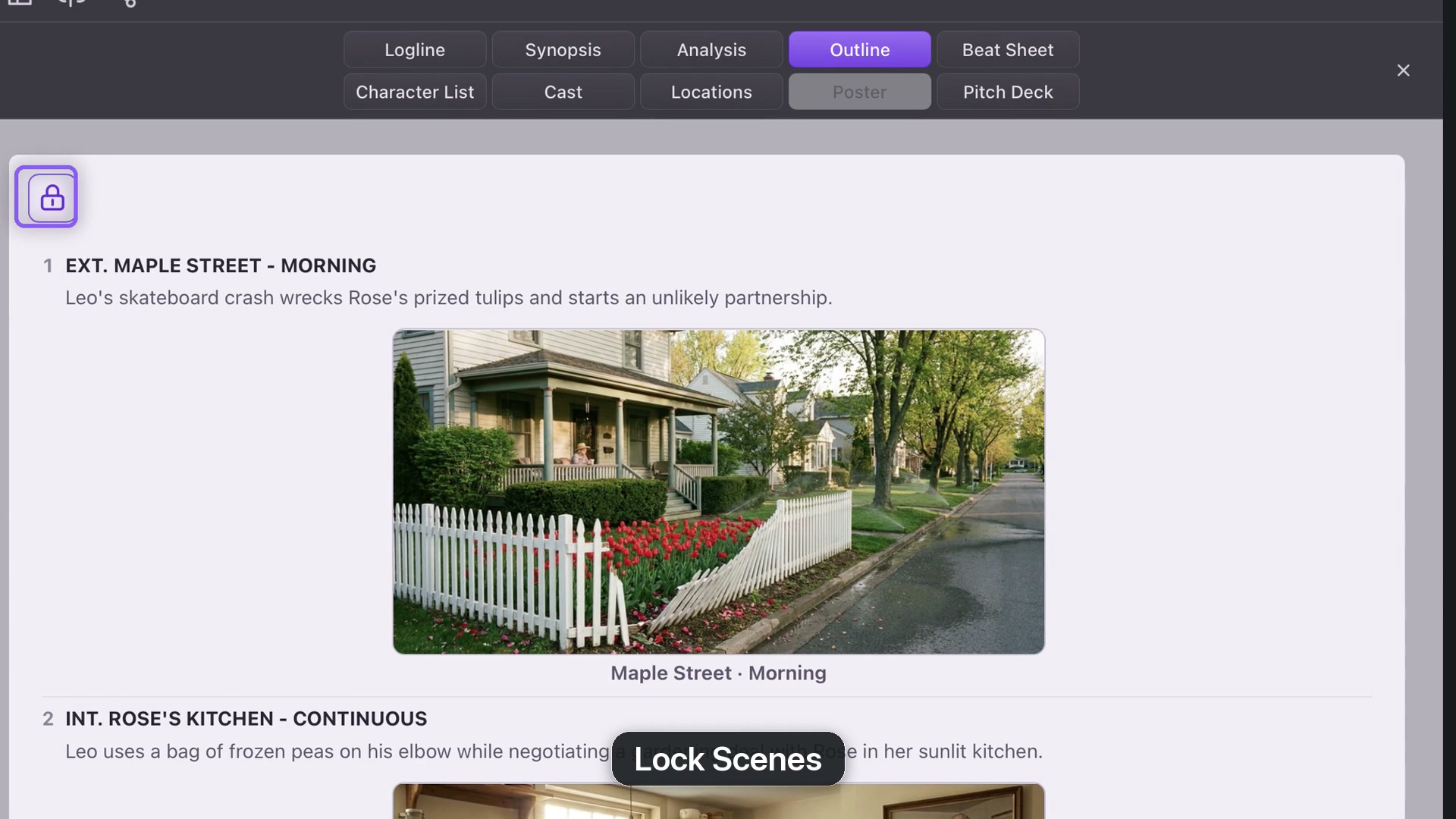
Lock for a clean read
Lock Scenes hides editing controls and protects the descriptions while you read. Unlock before making more edits. Save the project to keep the current outline.
Use Outline for scene-by-scene progression and Beat Sheet for larger structural turns. Neither needs to replace reading the actual screenplay.