

LESSON 38 · Make it yours
Special elements
Use emoji, Split Screen and Dual Dialogue when the scene needs more than the usual single-column elements.
1:07 · 1080p · Captions available · Playback starts only when you choose Play.
Place an emoji
Put the caret in an Action line, or select an existing emoji. Open the smiley tray and choose a symbol. The course replaces a tulip with a smile; Undo restores it. Use symbols when they belong to what the audience sees, such as a message on a phone.
Split Screen
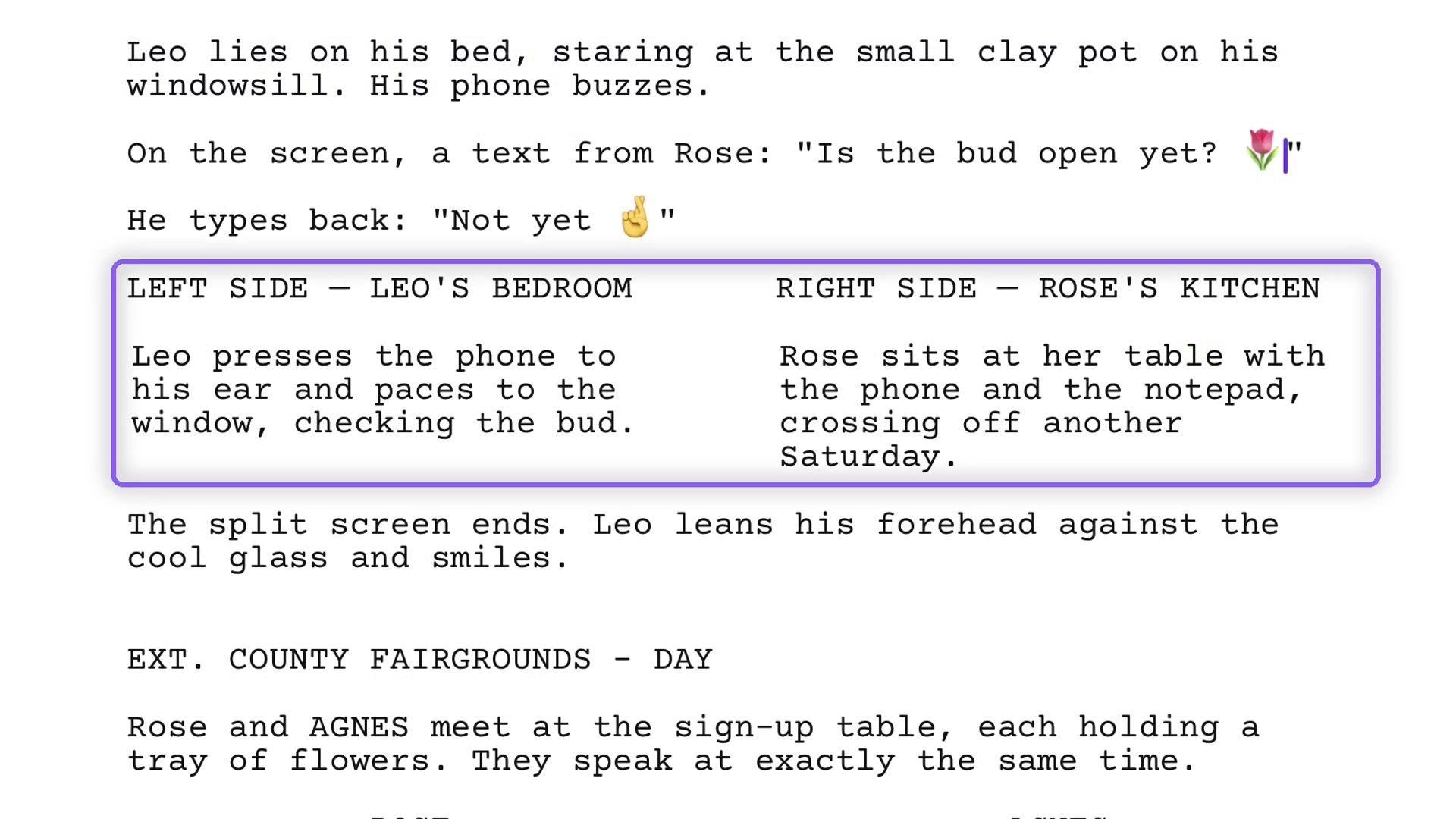
Choose Split Screen from the Element list in the bottom bar. It places two locations side by side for an action such as a call across town. The example places Leo in his bedroom and Rose in her kitchen. The Action after the split returns to normal full text width.
Dual Dialogue
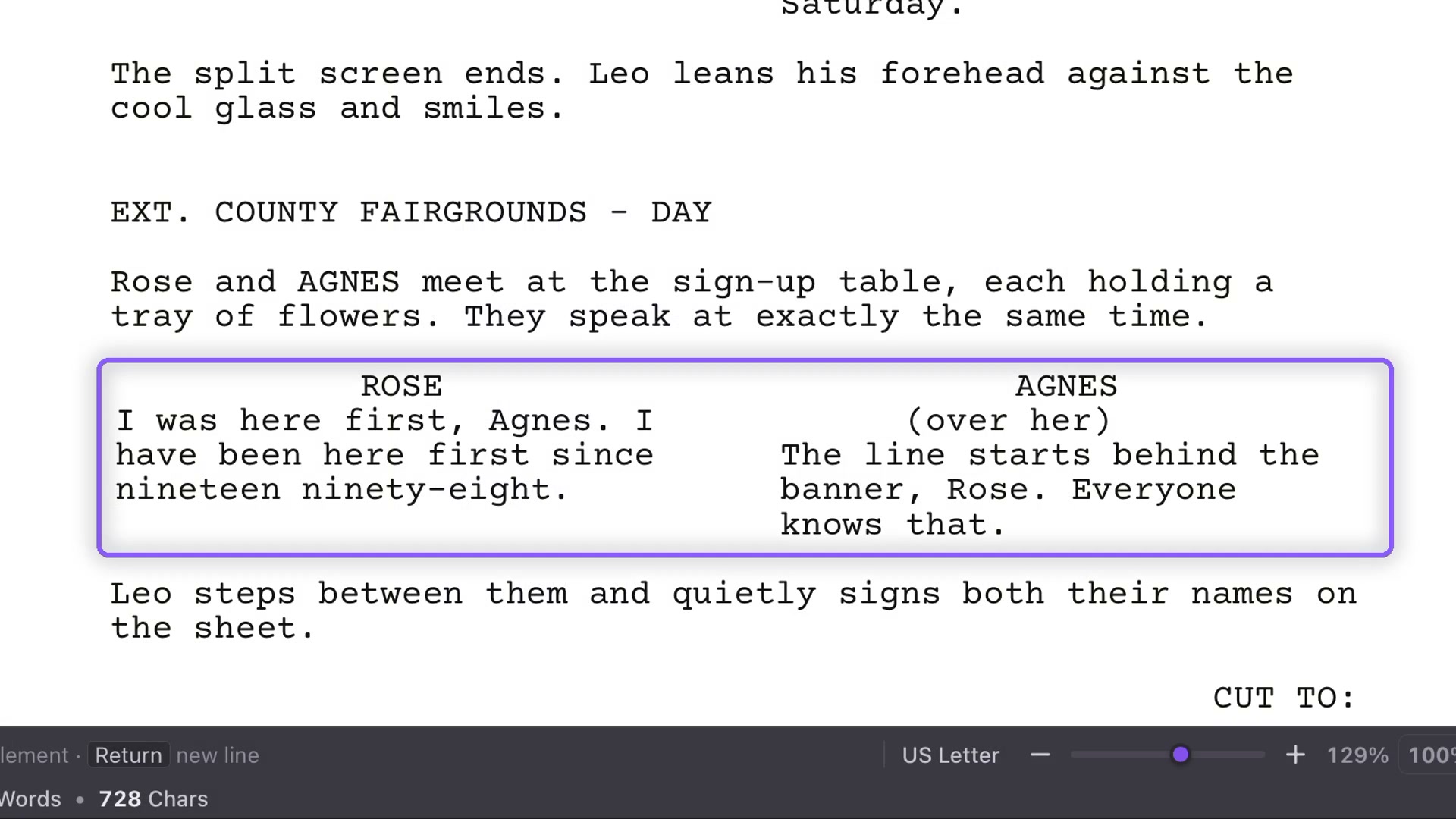
When two characters speak at once, choose Dual Dialogue from the same Element list. Their speeches occupy parallel columns. This communicates simultaneous speech, rather than two sequential speeches that happen to be short.
Return to the scene
Use special layouts only where they clarify the intended action or sound. Inspect the page after the two-column passage to confirm that the ordinary elements continue correctly. Save and inspect an export if the recipient will read a fixed-layout copy.