

LESSON 15 · Your workspace
Scene cards & character cards
See the screenplay as a wall of scene cards or character cards, with shared descriptions and production context.
2:52 · 1080p · Captions available · Playback starts only when you choose Play.
Open Scene Cards
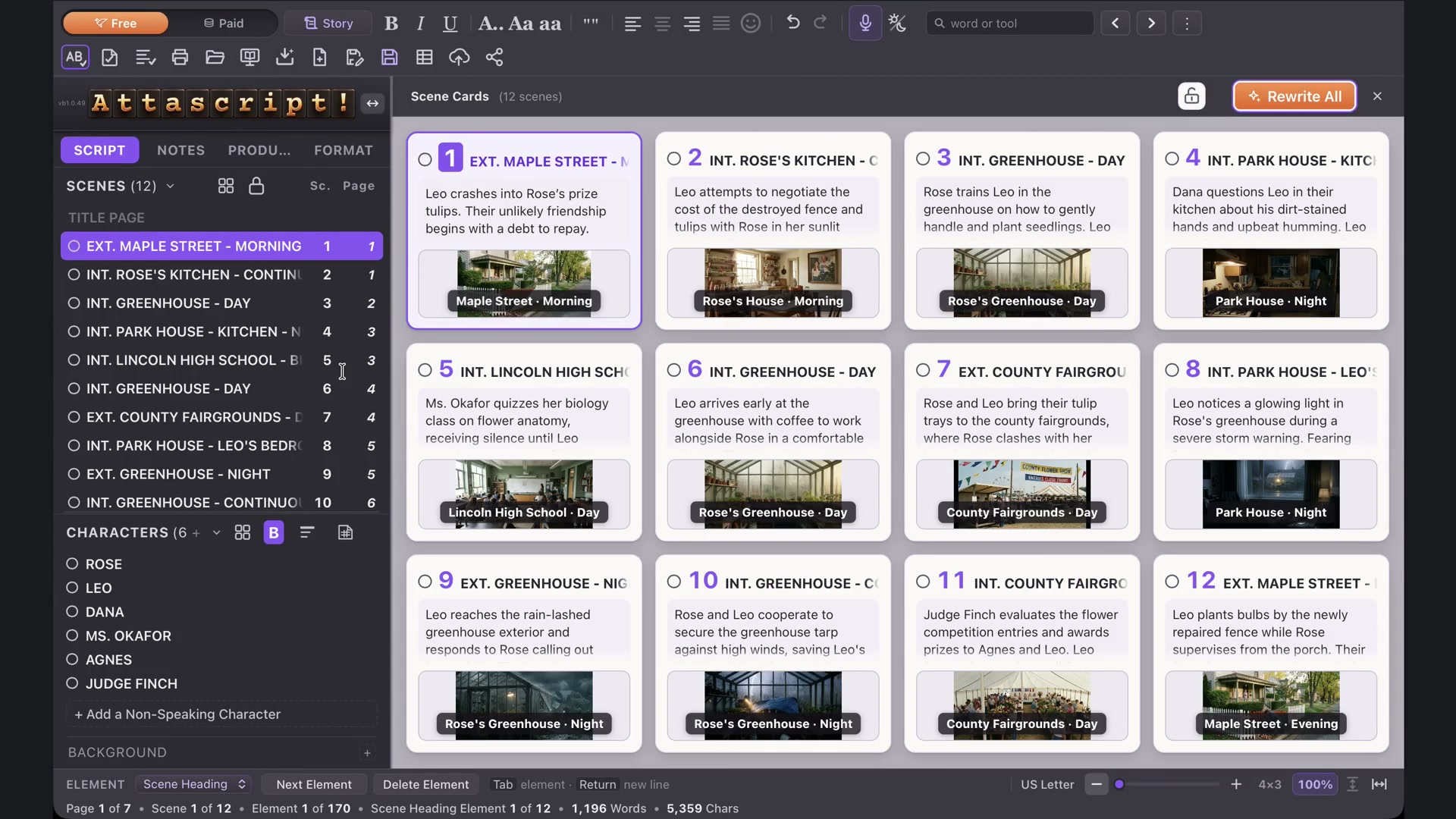
Click the four-squares control in Scenes. Before a summary exists, a scene card uses the first Action line. Write All creates descriptions from the scenes. You can edit any description directly.
When descriptions already exist, Rewrite All warns that it will replace them. Cancel if you want to preserve the current wording. The descriptions are shared with the Outline page, so an edit in one view appears in the other.
Read and arrange the cards
Each scene card combines its number, heading, description and characters. Saved matching location images appear too. Choose one large card, two by two, three by three or four by three using the layout controls.
Italic character names identify silent appearances. Background groups are separate. A tilde before a quantity marks an estimate; a number explicitly stated by the script can be recorded as a definite count. How many, in this scene changes only that scene’s quantity. Clearing it keeps the group.
Open Character Cards
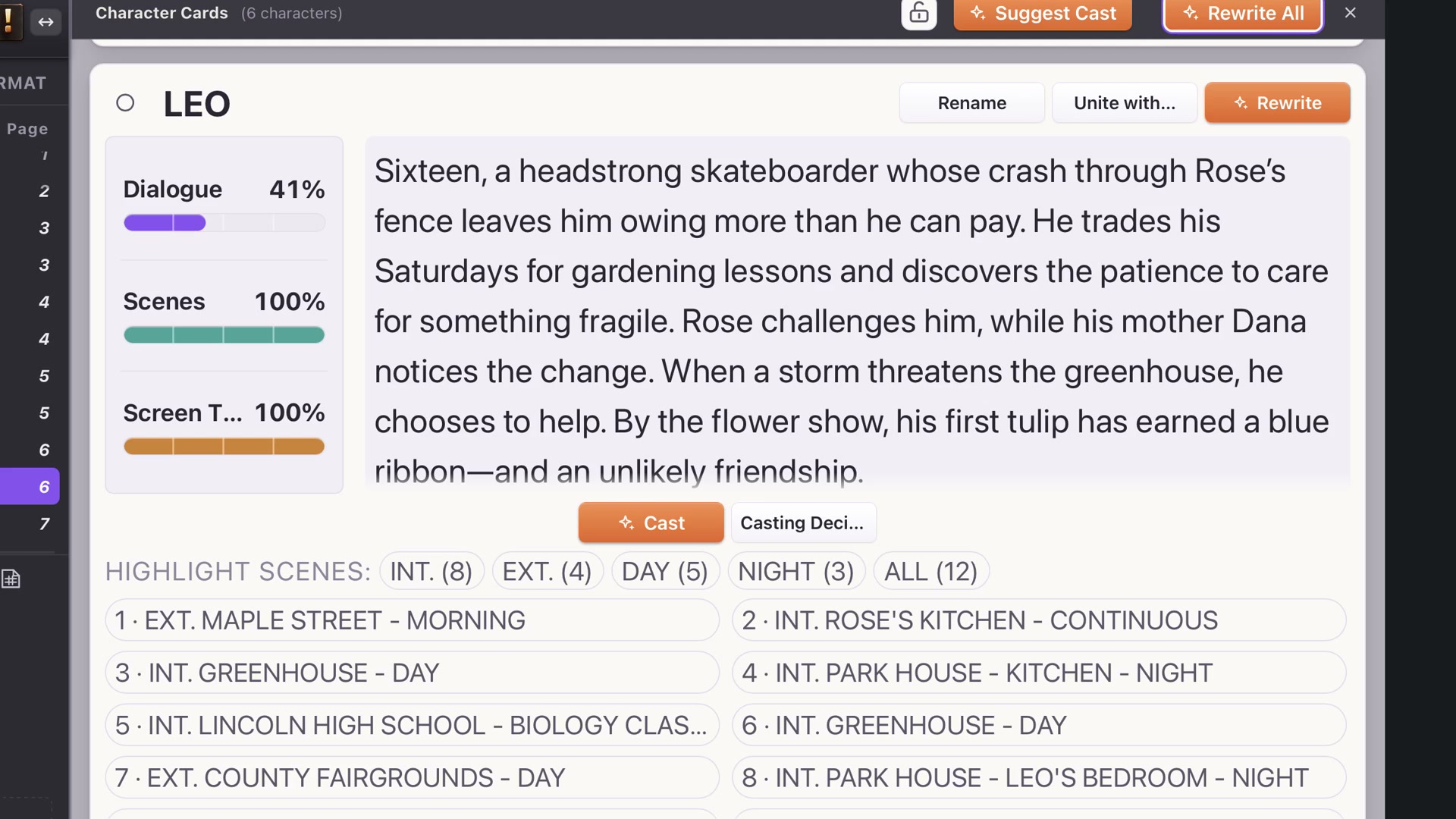
Close Scene Cards and use the four-squares control in Characters. Write All creates descriptions, shared with Character List. Read and edit them as needed.
Dialogue measures spoken-word share. Scenes measures appearances. Screen Time estimates from the page lengths of those scenes, counting each whole scene for every character in it. Those totals do not need to add to 100%.
Use color and locking
Color rings work like the scene and character panels. A character’s Highlight Scenes controls can color a group such as their night scenes; choose No color to clear the reminder.
Locking gives a clean read-only view with editing controls hidden. Unlock when you want to edit again, and save the project.