

LESSON 05 · Getting started
The bottom menu
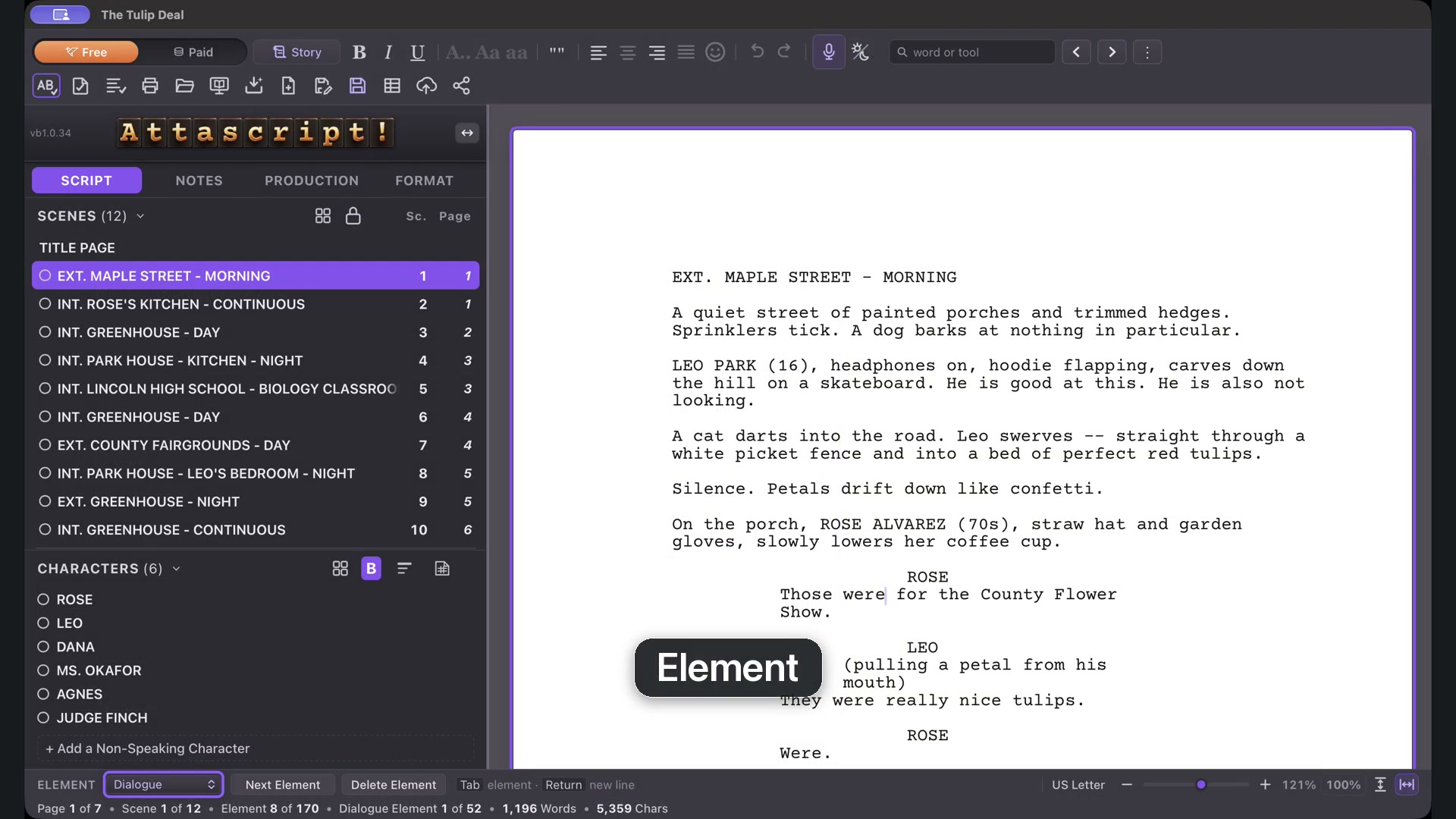
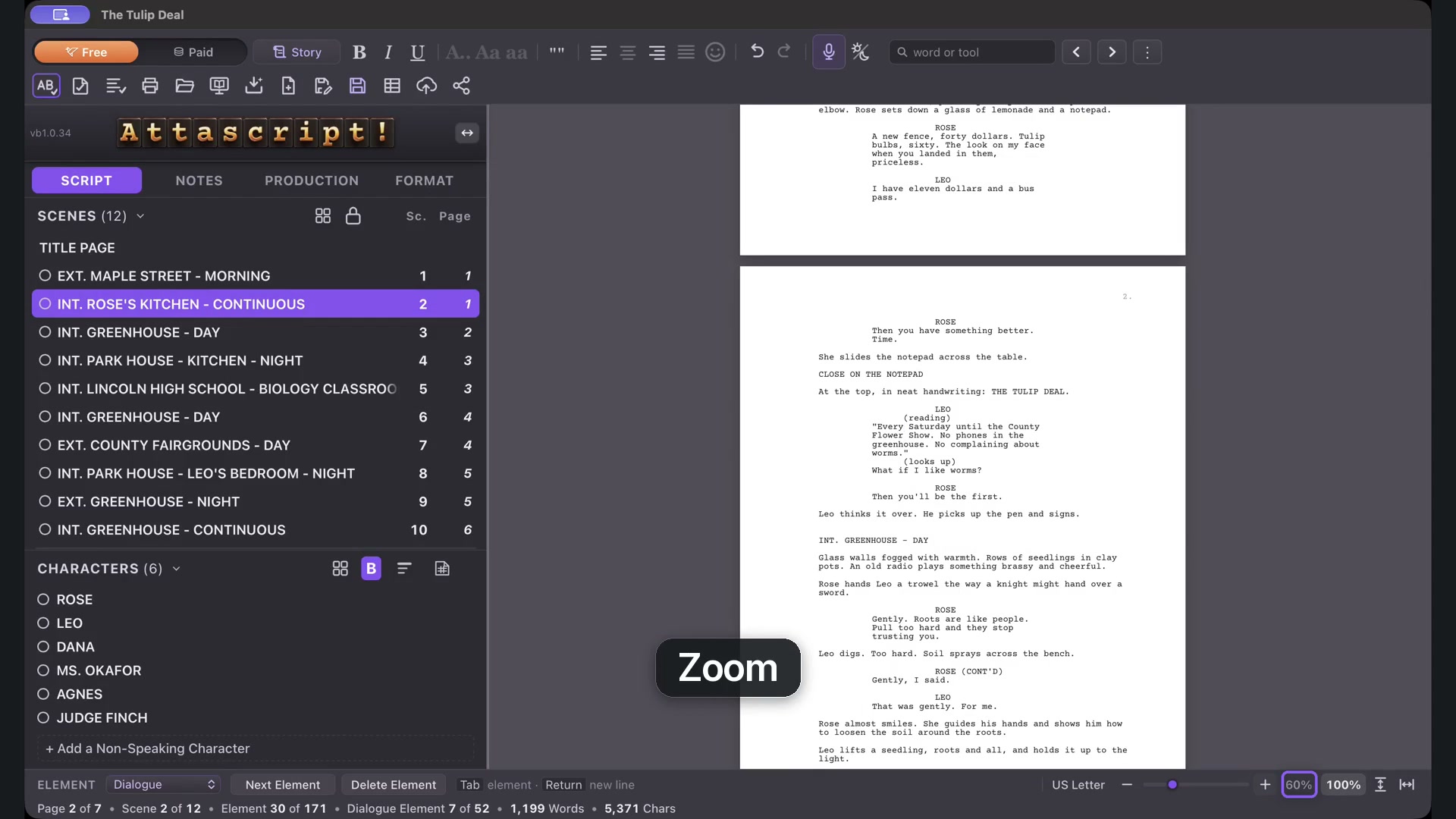
The bottom bar tells you where you are in the script and controls how much of the page you can see.
1:29 · 1080p · Captions available · Playback starts only when you choose Play.
Element and line controls
The Element box follows the caret: click in Dialogue, then Action, and its label changes. Choose a different type to change the current element.
Next Element adds the type that naturally follows. Delete Element removes the whole element, rather than a single character. Use that command deliberately and Undo if you remove the wrong line.
Counts that follow your selection
The footer shows page, scene and element information, plus word and character counts. Selecting text narrows the word and character totals to that selection. The paper-size label tells you the current page format, such as US Letter.
Find a comfortable view
Drag the zoom slider or use minus and plus. The dedicated view controls are 100%, Fit to Length for a whole page, and Fit to Width for larger text across the available space. Changing the view does not rewrite the screenplay.
Mac and Windows shortcuts
Next Element: Command+Return on Mac; Ctrl+Enter on Windows.
Delete Element: Command+Backspace on Mac; Ctrl+Backspace on Windows.
100%: Command+0 / Ctrl+0. Fit to Length: Command+1 / Ctrl+1. Fit to Width: Command+2 / Ctrl+2. Use the visible buttons if you prefer.