

LESSON 09 · Your workspace
The Notes panel
Keep notes attached to the relevant screenplay element, then turn selected feedback into a scene revision.
1:58 · 1080p · Captions available · Playback starts only when you choose Play.
Write and revisit your own notes
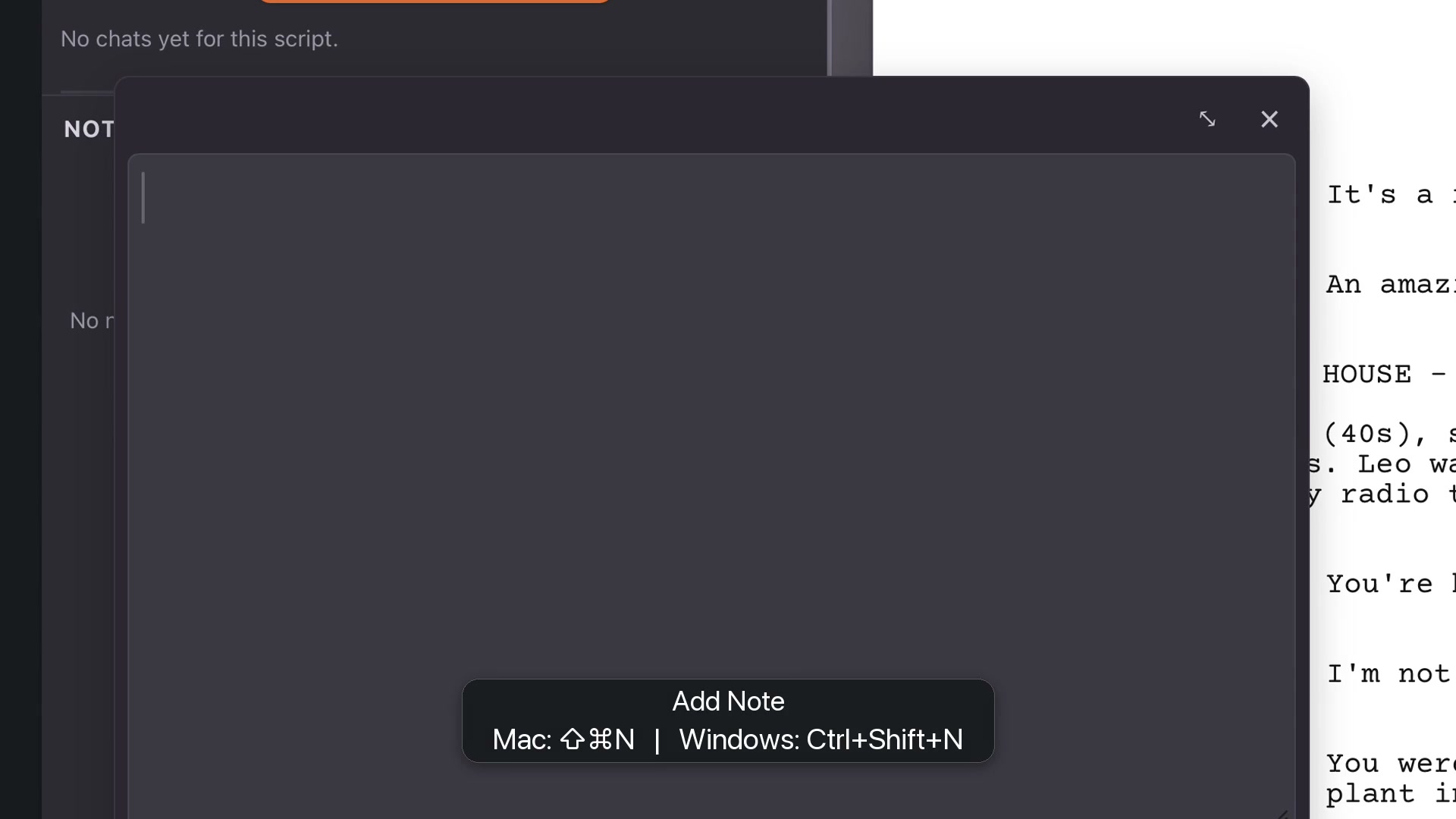
Put the caret on the relevant line. Choose Add Note, or Shift+Command+N on Mac / Ctrl+Shift+N on Windows. Write the note and close its card to save it. The note keeps its scene and page reference. Click the row later to return to that part of the script.
Ask for a scene-by-scene reading
Auto Scene Notes reads the screenplay and supplies a development note for each scene. Red flags issues, yellow identifies scenes needing treatment, and green marks strengths. Read the actual feedback rather than judging a scene only by its color.
Write Remaining Notes covers headings without notes. Rewrite Scene Notes refreshes AI notes you have not edited while preserving your own notes and edited AI feedback.
Apply a useful note
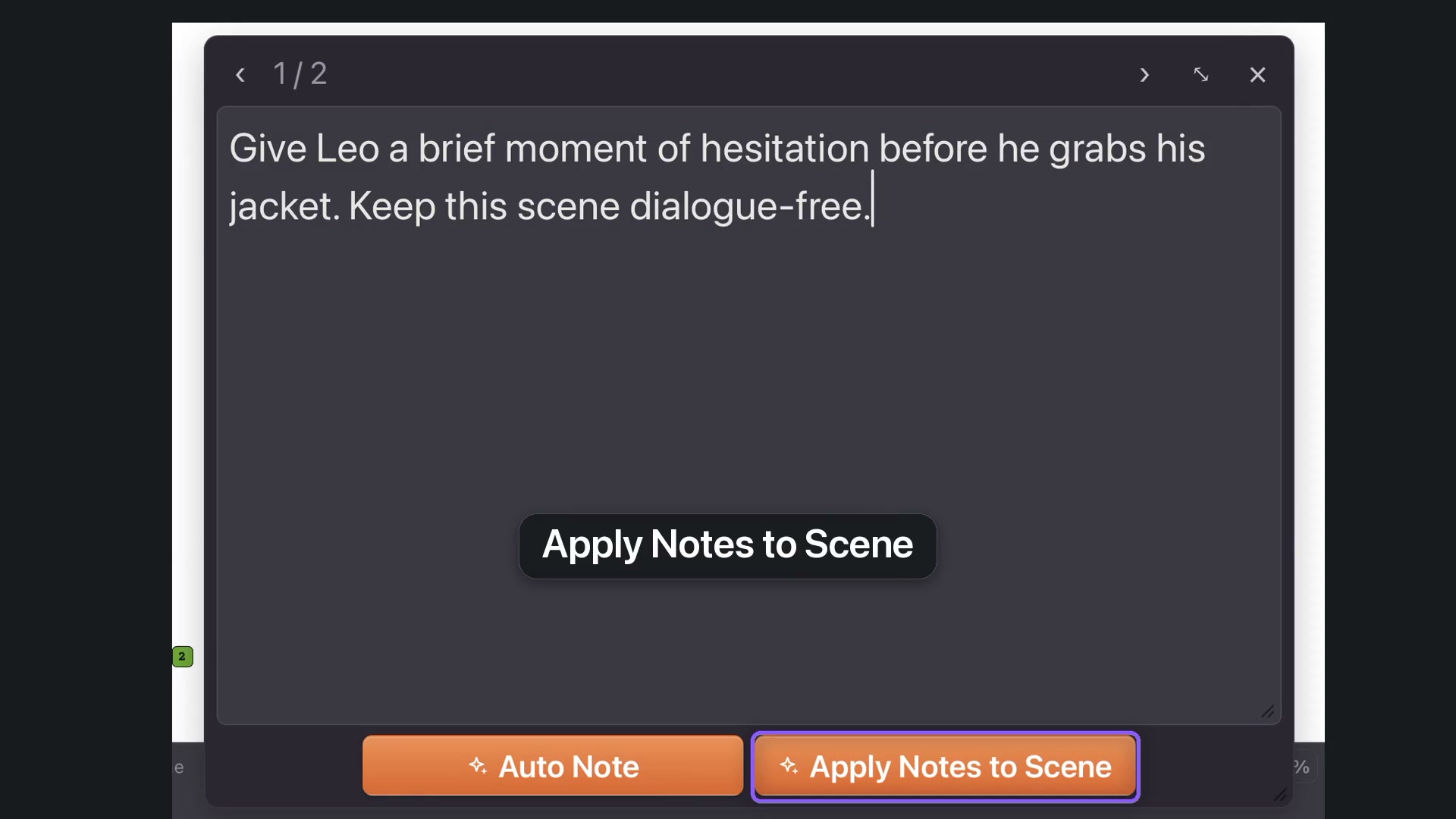
Double-click a note to edit it. Make its direction specific before choosing Apply Notes to Scene. In the example, the instruction asks for a hesitation expressed through action. Review the rewritten scene. Undo restores the preceding state if the result is not right.
Remove a note
Hover over a note’s row and use the trash icon. That removes the note, not the screenplay wording. Undo can bring the note back. Save the project to retain the notes you want to keep.